Why Players Want to Hide Their Activity in CS2
Not every gaming session is suited for full party lobbies. Players choose to hide their in-game presence for several practical reasons.
Personal privacy is often the top reason. You might have only half an hour between work tasks or family responsibilities. In those moments, you want a fast casual match without committing to a full competitive game with friends. When you play alone, you can exit the game whenever your schedule demands.
Solo training is another major factor. Improving in CS2 takes serious practice. Many players prefer to spend time on aim training maps, recoil control drills, and grenade lineups on Mirage or Inferno. If friends see you online, they will often send party invites. Turning them down repeatedly can feel awkward, and accepting them takes you away from your training plan.
Avoiding unwanted party invites also protects your social comfort. You might have friendly coworkers, casual acquaintances, or distant steam contacts who love to queue. If you do not feel like talking on voice chat, appearing hidden prevents awkward conversations before they start.
Rank and focus also matter. If your regular gaming group has a lower skill group, queuing together in Premier mode can put your rating at risk. Solo queuing allows you to focus purely on your own mechanics, crosshair placement, and communication with matching random teammates.
Finally, content creators and streamers often need off-stream practice time. They test crosshairs, video configurations, and radar setups without alerting their entire community list. Staying hidden allows them to test settings in complete peace.
What Your Friends Can Actually See on Steam
To hide your gameplay effectively, you must understand what Steam shares with other players by default. When your profile uses standard settings, several parts of your activity are visible to friends.
Online Status and Activity Indicator
Steam places a colored border around your avatar. A blue border indicates you are online and browsing the store or community. The moment you start CS2, this border turns bright green. Steam also places your profile at the top of your friends' chat windows inside the in-game group.
Current Game Title
Steam displays Counter-Strike 2 directly beneath your profile name. Anyone opening their friends list can instantly see the exact game you launched. This title stays visible for the entire duration of your gaming session.
Game Details and Match Data
If your privacy settings permit game details, Steam broadcasts rich presence data. For CS2, friends can often see your current mode, such as Premier, Competitive, or Deathmatch. They can also see your current map and sometimes the live round score.
Recent Playtime and Total Hours
Steam tracks your total hours in CS2 as well as your hours over the past two weeks. When someone visits your profile page, they can see exactly how much time you spent playing recently. If you claimed you were busy away from your PC, a high recent playtime number can reveal your session.
Friends List and Mutual Groups
Your friends list can show mutual acquaintances and public groups you join. If you queue with one friend while avoiding another, mutual contacts might notice both of you in a match together. Knowing these visibility layers helps you choose the right settings to apply.
Method 1: Set Your Steam Status to Invisible or Offline
The fastest way to hide your CS2 gameplay is to change your chat status directly within the Steam desktop application. Steam provides two options that conceal your activity: Invisible and Offline.
Understanding Invisible Versus Offline Mode
Invisible mode is the recommended choice for most Counter-Strike 2 players. When you select Invisible, your profile appears completely offline to everyone on your friends list. You do not appear in the green in-game section. However, you stay connected to Steam servers. This means you can still open the chat window, send messages to specific friends, and receive Steam updates.
Offline mode is more restrictive. When you choose Offline, Steam signs you out of the friends network entirely. You cannot send direct messages or see who is online until you log back in. For normal gaming, Invisible mode gives you privacy while keeping your client connected.
Steps to Set Your Status to Invisible
- Open the Steam desktop client on your computer.
- Click on the Friends menu in the top navigation bar, or click Friends & Chat in the bottom-right corner.
- Click the small drop-down arrow next to your profile avatar and name at the top of the chat panel.
- Select Invisible from the list of statuses.
- Verify that your avatar outline turns grey, confirming that your status is hidden.
Once set to Invisible, you can launch Counter-Strike 2. Your friends will see you as offline, just as if your computer were powered down. This status remains active across game restarts until you manually change it back to Online.

Method 2: Change Your Steam Privacy Settings
While Invisible mode conceals your real-time status, your Steam profile page might still show your recent playtime or library details. Adjusting your account privacy settings provides a permanent layer of protection. You can also hide Counter-Strike 2 specifically using the private game feature.
Adjusting Profile Privacy Settings
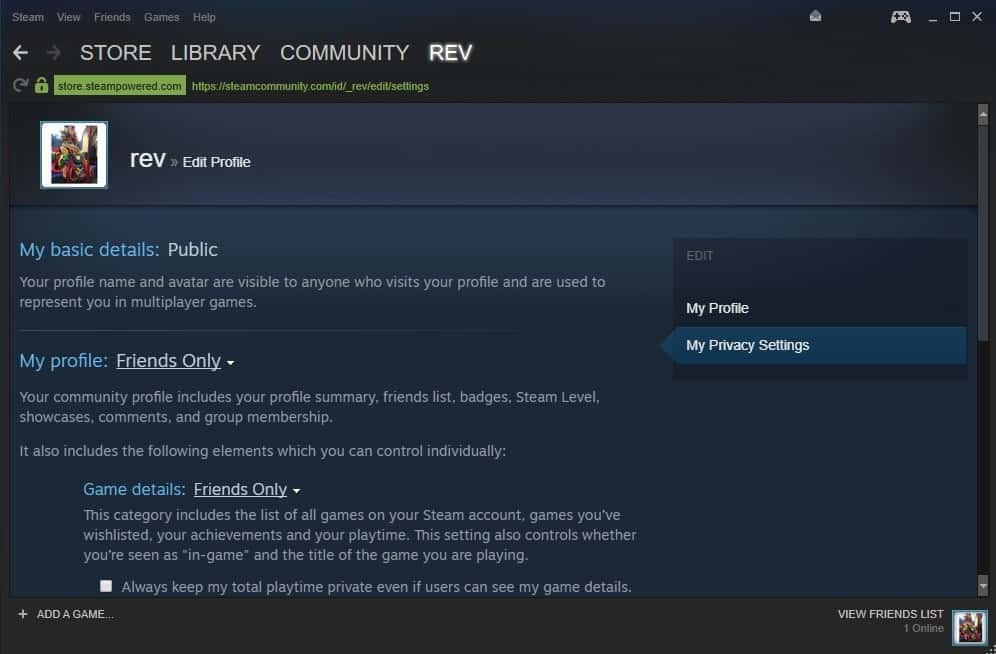
To prevent friends from viewing your game details on your profile page, adjust your privacy options with these steps:
- Open Steam and click your profile persona name in the top navigation.
- Click on Profile, then click the Edit Profile button on the right.
- In the left column menu, select Privacy Settings.
- Find the section labeled Game details and switch it from Public or Friends Only to Private.
- Check the sub-option titled Always keep my total playtime private.
- Set your Friends list and Inventory to Friends Only or Private based on your needs.
Setting Game details to Private ensures that even if you accidentally stay marked as Online, Steam will not show CS2 under your name. It also conceals your total hours, achievements, and badges. For detailed information on profile rules, you can review Steam Support pages.
Marking CS2 as a Private Game in Your Library
Valve introduced a feature that lets players hide specific games individually. This is great if you want friends to see you playing cooperative casual games, while keeping your CS2 matches hidden.
- Open your Steam Library.
- Find Counter-Strike 2 in your game list on the left side.
- Right-click on Counter-Strike 2.
- Hover your cursor over the Manage submenu.
- Click on Mark as private.
- Confirm your choice in the verification prompt.
When marked as private, Counter-Strike 2 behaves as though you do not own the title to outside visitors. It hides your current in-game status, library ownership, achievements, and playtime from your friends.

Method 3: Control Who Can Join You and Send Invites
Even when your status is hidden, in-game party settings can sometimes allow friends to jump into your lobby uninvited. You should adjust your lobby permissions and chat notification options to prevent unexpected interruptions.
Configuring Steam Friends and Chat Notifications
To avoid loud notification sounds or screen flashes while you are holding an angle in CS2, change your chat settings:
- Open your Friends & Chat window in Steam.
- Click the small gear icon in the top-right corner to open chat settings.
- Select the Notifications tab on the left.
- Turn off options for playing sounds and flashing windows when messages arrive.
- Switch your status to Do Not Disturb if you want all chat alerts muted completely.
Setting In-Game Lobby Permissions in CS2
When you sit in the CS2 main menu, your party settings dictate whether friends can join your squad directly. To prevent friends from joining your lobby uninvited:
- Launch Counter-Strike 2.
- Look at the party panel on the right side of the main dashboard.
- Check your lobby privacy toggle at the top of the party column.
- Change the setting from "Open to Friends" to Friends Need Invites.
- Look at the Looking to Play beacon on the left side and make sure it is turned off.
Setting your party to invite-only stops contacts from jumping into your queue while you prepare for solo matches.
How to Stay Private While Using Your Steam Friends List
Managing your friends list is another practical step toward total privacy. Over months of playing Counter-Strike, your list can easily collect dozens of random contacts from casual games, trade offers, and community servers. Keeping your list organized makes privacy easier to maintain.
Organize Friends into Custom Categories
Steam allows you to tag friends and place them into custom groups. You can create one group for real-life friends, one for competitive teammates, and one for casual trade contacts. To categorize a friend, right-click their name in your chat list, select "Manage", and choose "Categorize". This helps you see at a glance who is online without confusion.
Clean Up Inactive Contacts
A large friends list increases the chances that someone notices your activity through mutual connections or community servers. Periodically inspect your list and remove players you no longer queue with. For players who need an established profile look for trading or reputation, some turn to professional Steam friends list services to maintain a credible account appearance without adding personal contacts who monitor their activity.
You can also check player tips on the Steam Community forums to see how other competitive players organize their profiles for privacy.
Playing FACEIT Without Friends Seeing
FACEIT is a widely used competitive platform for CS2 matches. However, staying hidden on FACEIT requires extra caution because the platform runs on its own client and website tracking system.
How FACEIT Displays Match Activity
When you start a match on FACEIT, the service marks your profile as currently playing on the FACEIT website. Anyone on your FACEIT friends list can see your live room link, map vetoes, and squad members. Even if your Steam client is set to Invisible, your FACEIT profile can show that you are active.
Steps to Maximize FACEIT Privacy
- Open your FACEIT client or visit the website.
- Click your avatar in the upper-right corner and open Settings.
- Navigate to your privacy preferences and restrict status sharing where available.
- Set your party lobby to private so outside users cannot inspect your room.
- Ensure your Steam client remains set to Invisible before connecting to the match server.
Understanding Match History Visibility
Keep in mind that match outcomes, ELO adjustments, and scoreboards on FACEIT are logged on public profile tabs. While friends might not catch you in the exact minute you play, they can see past games if they check your profile later. Players who want to maintain high ranks without running into party friction often check reliable FACEIT boosting options to reach their goals discreetly. If you need help with third-party queue issues, consult the official FACEIT Support desk.
Common Problems and Fixes
Even with careful configuration, small glitches or background services can sometimes broadcast your activity. Here are common problems and how to resolve them.
Steam Status Resets to Online
If you set your status to Invisible but friends report seeing you online, Steam might have experienced a brief connection drop. When reconnecting, the client occasionally defaults back to Online. To fix this, open your chat window, toggle to Online, wait a few seconds, and select Invisible again. Restarting Steam usually resolves stubborn connection glitches.
Friends See You on Server Lists
If you connect to a community server or casual match, friends who visit your profile might see a "Join Game" button. This happens when your profile Game details are left on Public. Go to your Steam Profile Privacy settings and switch Game details to Private. This removes the join button entirely.
Steam Mobile App Syncing Status
If you use the Steam mobile app on your smartphone, opening the app can update your account status. Open the mobile app, tap your profile picture, and select Invisible in the mobile status menu. This prevents your phone from broadcasting your presence while your desktop is hidden.
Third-Party Stat Trackers Showing Games
Sites like Leetify or Tracker Network track matches using authentication codes. If you have linked your account to these services, your recent matches appear publicly. If you want full privacy, revoke public access tokens in your CS2 game settings and avoid sharing match sharing codes.
Video Guide: Steam Privacy and Hidden Matches
If you prefer a visual walkthrough, this video shows how to adjust your Steam status, manage private lobby settings, and keep your gameplay hidden from outside viewers.
Quick Checklist for Private CS2 Sessions
Before you launch Counter-Strike 2, run through this checklist to make sure your gaming session stays completely hidden:
- Set your Steam Friends status to Invisible before opening the game.
- Confirm your chat avatar border is grey instead of green or blue.
- Set Game details to Private in your Steam Profile Privacy settings.
- Mark Counter-Strike 2 as a Private Game in your Steam Library.
- Configure CS2 lobby permissions to Friends Need Invites.
- Turn off the Looking to Play broadcast on the CS2 main menu.
- Verify your status on the Steam mobile app matches your desktop.
- Mute notifications or enable Do Not Disturb in Steam chat.
- Set third-party platforms like FACEIT to private mode if queuing outside Valve servers.
Frequently Asked Questions
Can friends see I am playing CS2 if I am offline?
No, friends cannot see that you are playing CS2 when your status is set to Invisible or Offline. Your avatar appears offline, and your green in-game indicator remains hidden. Friends receive no pop-up alerts when you launch the game. However, if your game details remain public, they could see your updated total playtime later.
Does invisible mode hide my CS2 match history?
Invisible mode conceals your real-time status, but it does not erase past match records from public tracking tools. If someone inspects your match history through public sharing codes or third-party stats databases, past matches remain visible. To keep matches hidden, set your Steam Game details to Private and do not link public tracking sites.
Can I appear offline on Steam but still play with friends I choose?
Yes, you can easily play with chosen teammates while appearing invisible to everyone else. Simply remain in Invisible mode and invite your preferred teammates directly to your party lobby. They will join your match normally, while other players on your friends list will still see your profile as completely offline.
Does appearing offline affect my Trust Factor or matchmaking?
Appearing offline or invisible has no impact on your CS2 Trust Factor or matchmaking queues. Valve uses internal standing, report history, and gameplay metrics to determine Trust Factor. Changing your social status simply adjusts your visibility on the friends network without changing how the matchmaking system places you into games.
Will changing privacy settings affect my FACEIT account?
Setting your Steam status to Invisible does not disrupt your ability to queue on FACEIT. You can connect to FACEIT servers normally. However, you should keep your Steam profile accessible during initial verification if required by the platform. Once verified, playing while invisible on Steam works without any major issues in most cases.
Playing Counter-Strike 2 in private lets you enjoy the game on your own schedule. Whether you want to train your aim, test new crosshair settings, or climb ranks without social pressure, using Invisible mode and private library options keeps your gaming sessions peaceful. For more tips on improving your competitive setup and mastering game mechanics, be sure to read the next guide in our series.